Dishonored: Over a Decade Later

This is a jumble of notes from a recent play-through I did of Dishonored. It isn’t a true deconstruct but does take note of certain opinions that I will note are my own.

One of my favorite types of games are Immersive Sims; games like Bioshock, and Thief, that present the player with general goals that can be solved using a number of different methods. Most Imm-Sims allow for the player to dictate their gameplay, like using Plasmids in Bioshock, and have levels built with the intent of using different methods to work through those environments. Each play-through is rarely the same and the genre allows for so much flexibility that there is often large opportunity for replays. Dishonored delivers all of this and so much more with a rich story, interesting mechanics, and reactions to the player that even twelve years later it still holds a lot of its initial appeal.

As a companion piece to this write up, I want to link to this YouTube Video that does a great commentary on Dishonored all these years later. If you find yourself getting less than 20 minutes in and wanting to just play the dang game all over again, you aren’t alone. I will note, it is available to play on Game Pass currently.

  1. Introduction
  2. Results
  3. Systems
  4. Gameplay
  5. Level Design
  6. Missions
  7. Final Thoughts

Introduction

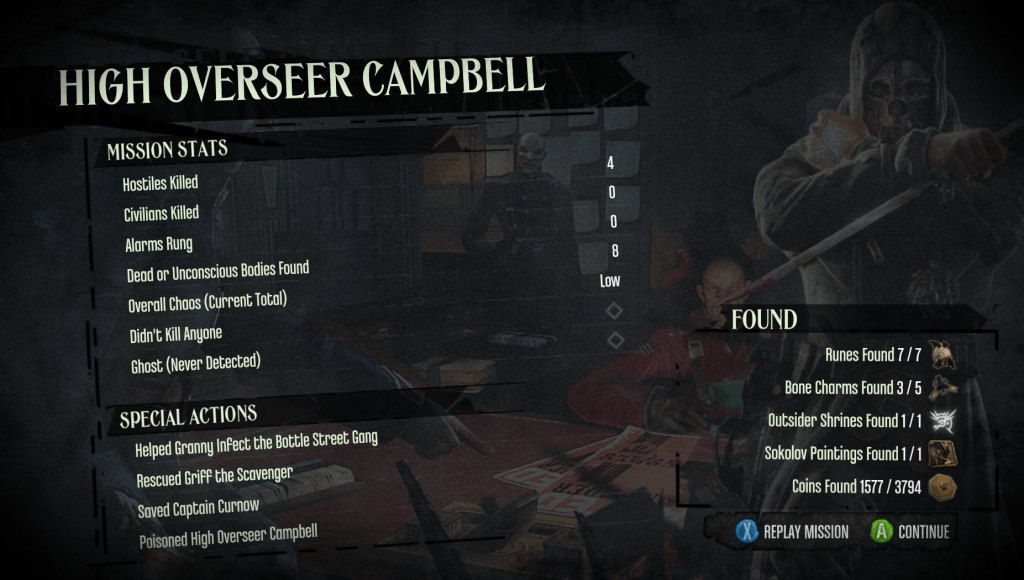
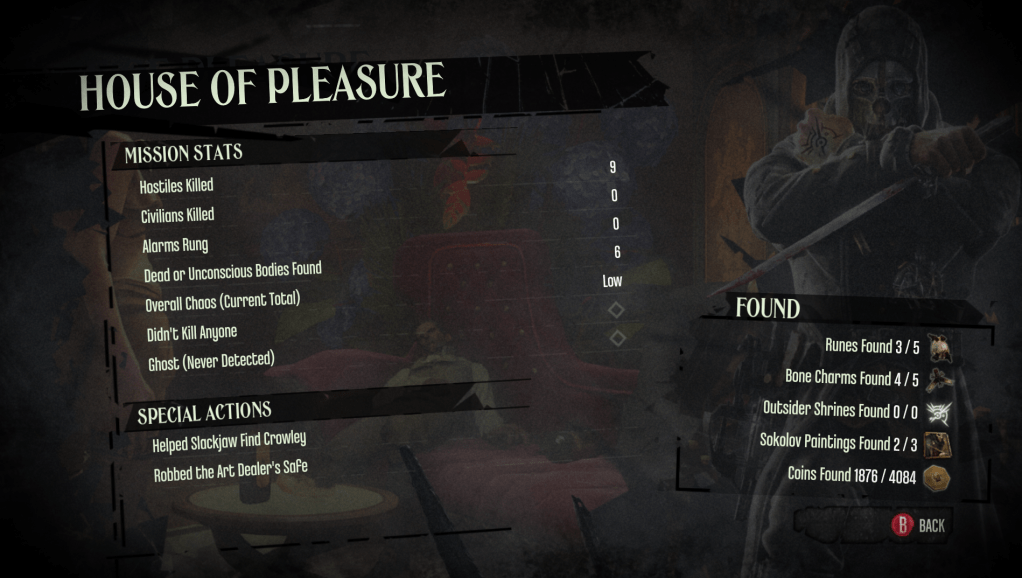
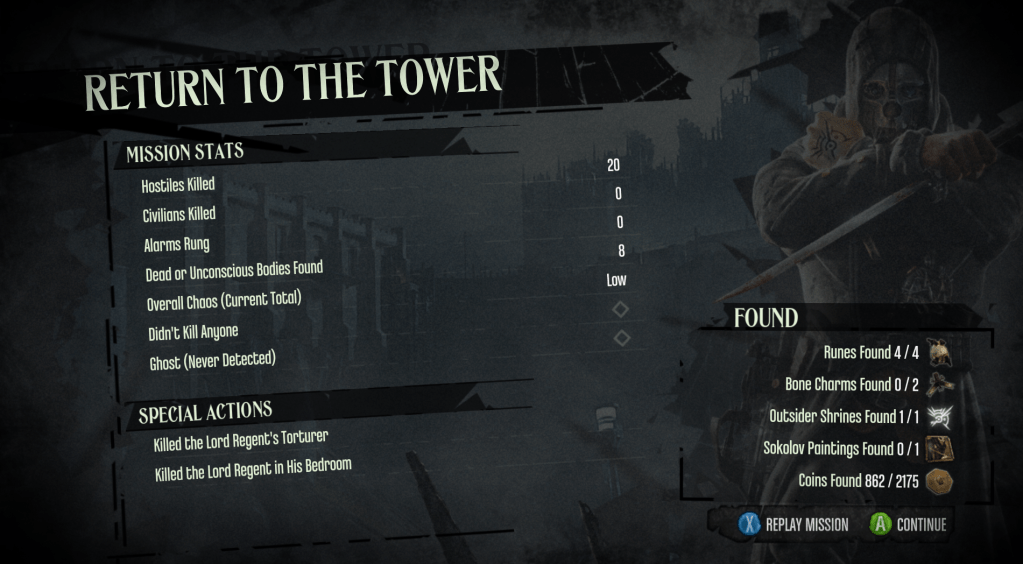
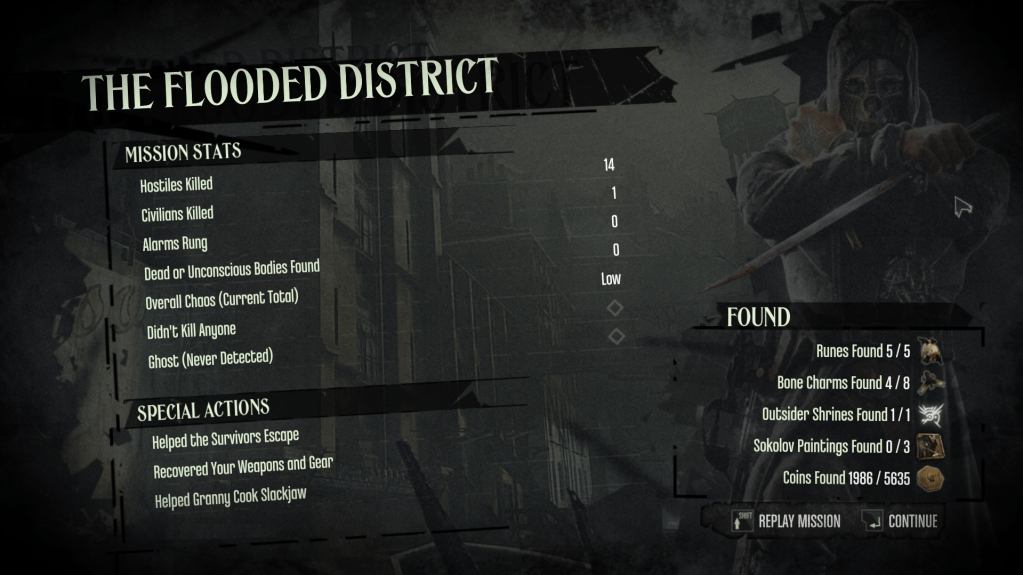
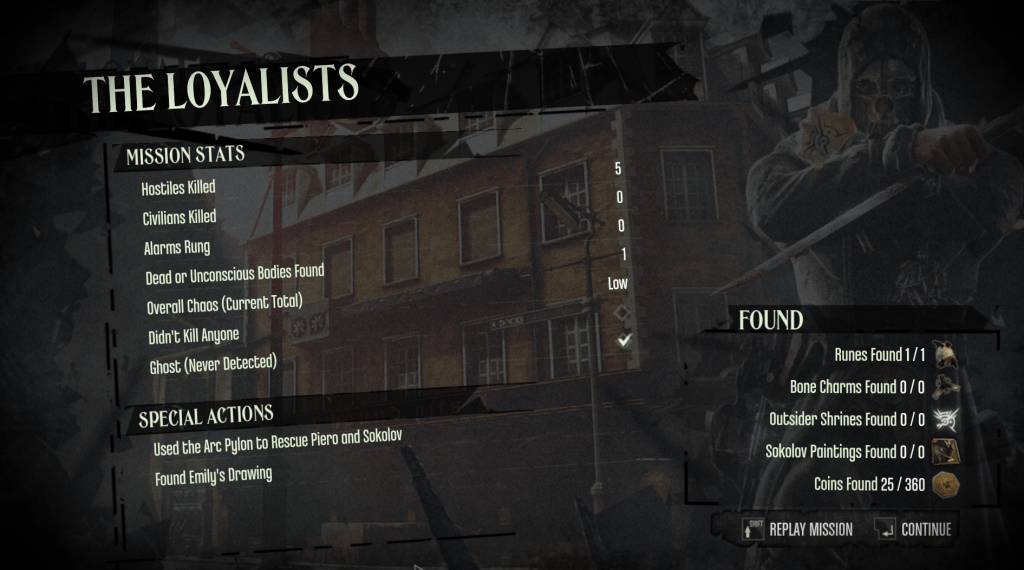
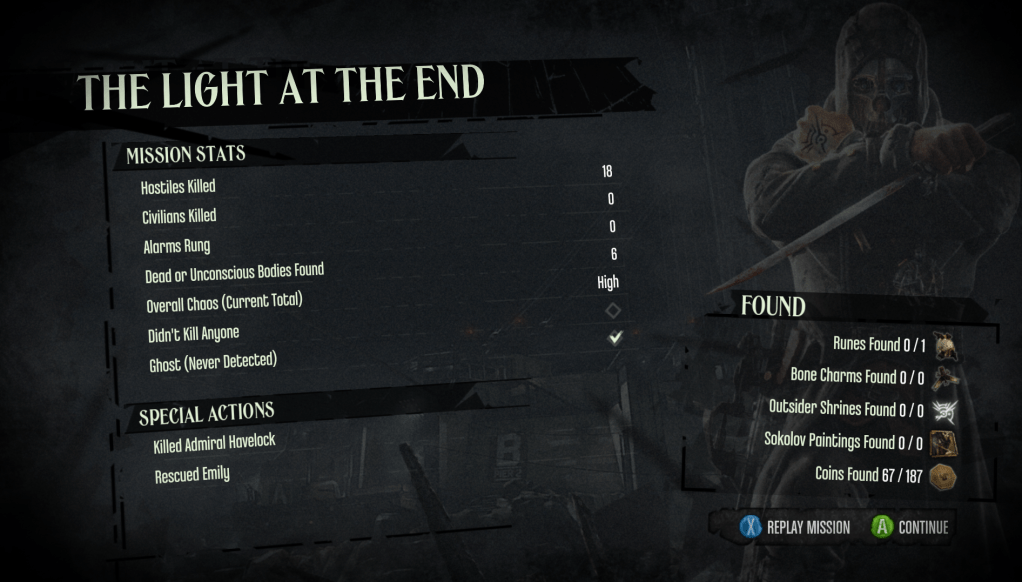
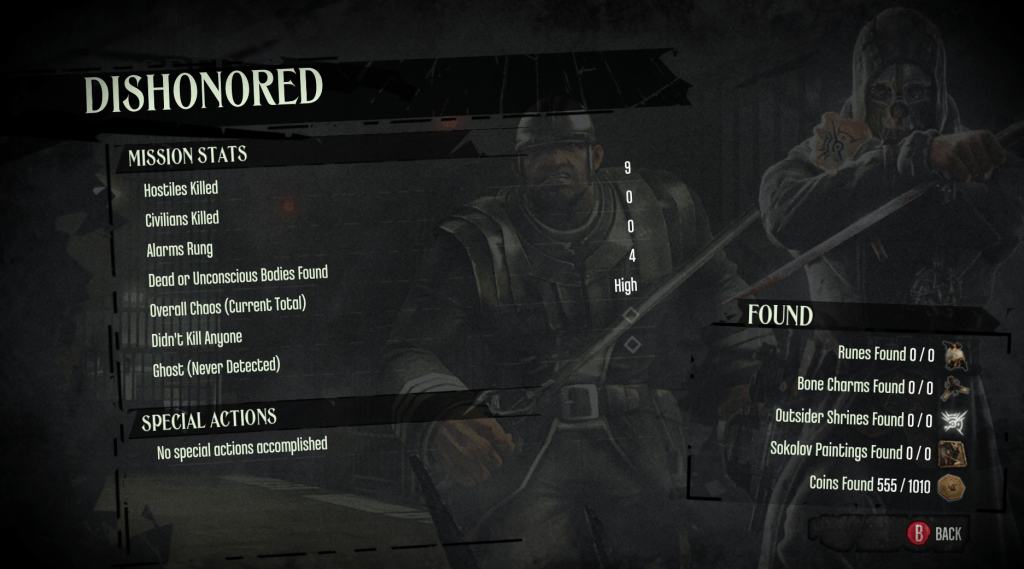
This wasn’t my first playthrough of the game but it was the first in which I intentionally attempted a low chaos score and minimal kills. I couldn’t make it through all the missions as a ghost, but I was able to do it in the final missions, possibly because they were more heavily scripted. I found myself constantly in a state of spamming the Quick Save button. One of the reasons I would do this would be to setup a scenario so I could go completely chaotic to see how things would play out, and then restart my save in order to play less chaotically. One of my favorite phrases that I’d constantly repeat as a result of this experiment was, “Whoa, I didn’t know I could do that!”.

Results
Systems

  • Blink+Choke is one of my favorite stealthy tactics. I learned to do this early on and spent the majority of my playthrough using this tactic to do most non-lethal takedowns.
  • Blink is one of the most useful abilities for avoiding detection, quick movement, and access to verticality.
  • I did not know the Rewire Tool was a consumable until I wasn’t able to rewire a Walls of Light interaction. I may have missed the tutorial or note about this item’s functionality early on.
  • Improved jump (Movement Upgrade) feels weird and cartoony compared to the rest of the game. Completely jarring when seeing it for the first time or resuming play.
  • Dark Vision makes the world look really ugly. The player ends up spending most of their stealth play-through in this mode and it’s unfortunate because it desaturates the world and makes it less interesting to look at.

Gameplay

  • Shadows help keep player awareness down. I found myself enjoying the stealth-like nature of how light and dark play together. This kind of functionality really makes it feel like the player is immersed in their environment and have to utilize the shadows to stay hidden.
  • Dynamic lighting (Wall of Light, rotating spotlights) helps the player feel immersed but also functions as a stealth mechanic. I could either bypass them using stealth, or plan to tactically disable them.
  • Quick save has come in handy when trying to work through a stealth play-through.
    • I need to emphasize this. This game would be absolutely impossible without a quick save.
  • Stealth tools seem limited compared to those abilities that create a lot of chaos or kills. I would rarely use grenades, barely fired my gun, and generally avoided tools/weapons that seemed to create too many stims.
    • If there was a way to silence my gun, or turn a grenade into a smoke bomb I think I would have had more utilization for those tools.
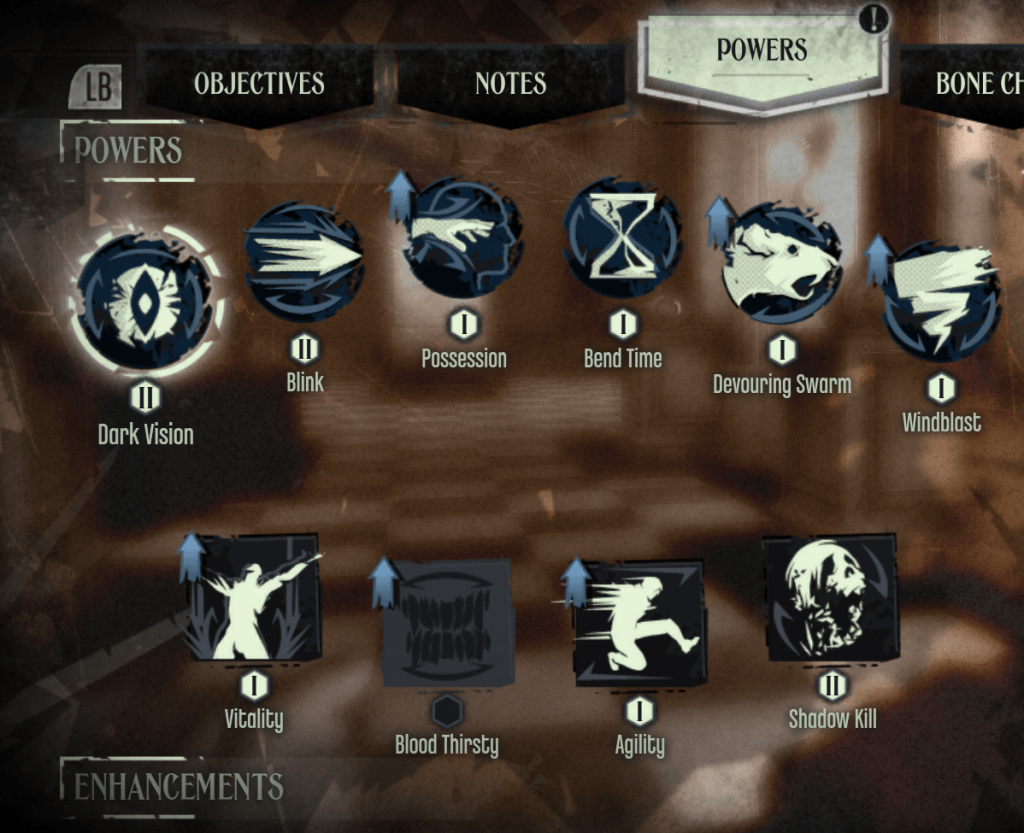
  • Some Powers and Enhancements I didn’t bother ever buying. I purchased most of the powers but didn’t upgrade many of them outside of Dark Vision, Blink, Agility, and Shadow Kill.
    • Shadow Kill took me awhile to invest into in the first place; I had a misconception that it could have affected my chaos by increasing my kill count. It’s an unusual misconception, but for some reason I thought lethal takedowns would work against me in some way.
    •  I also didn’t spend a lot of time with melee combat so I didn’t invest in adrenaline.
Level Design

  • Good amount of verticality in the maps. I was able to use Blink and jump accordingly. It also allowed me an opportunity to have a “bird’s eye” view and allowed for quick scanning of areas to avoid patrols and develop a tactical strategy for a non-lethal play-through.
  • Good use of space within the map. It adds variety to player tactics and I like how most of the spaces make sense in relativity to problem-solving (e.g. gaining access to an adjoining room that appears to be blocked off but could still be accessed through a different point in the map).

Missions

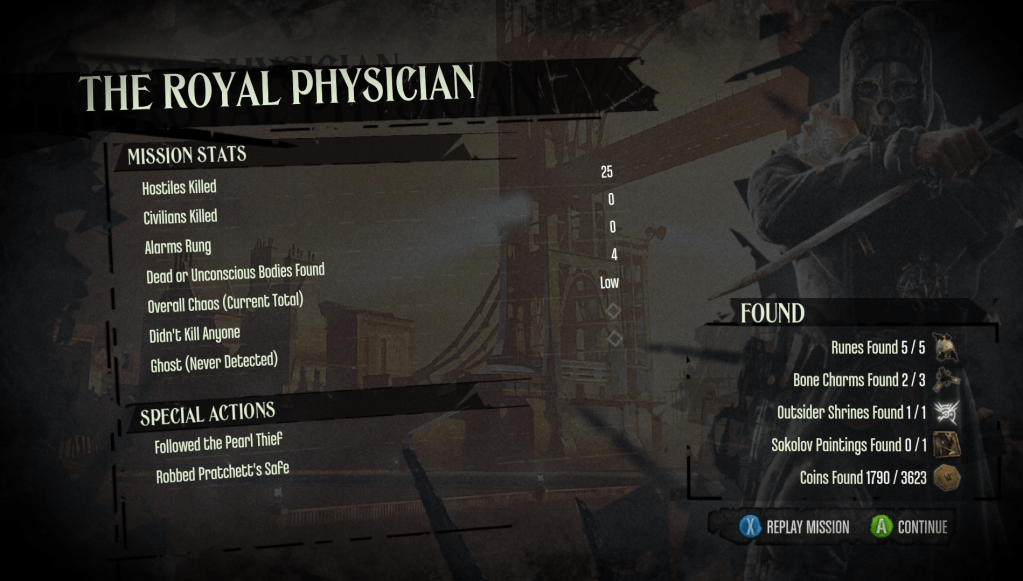
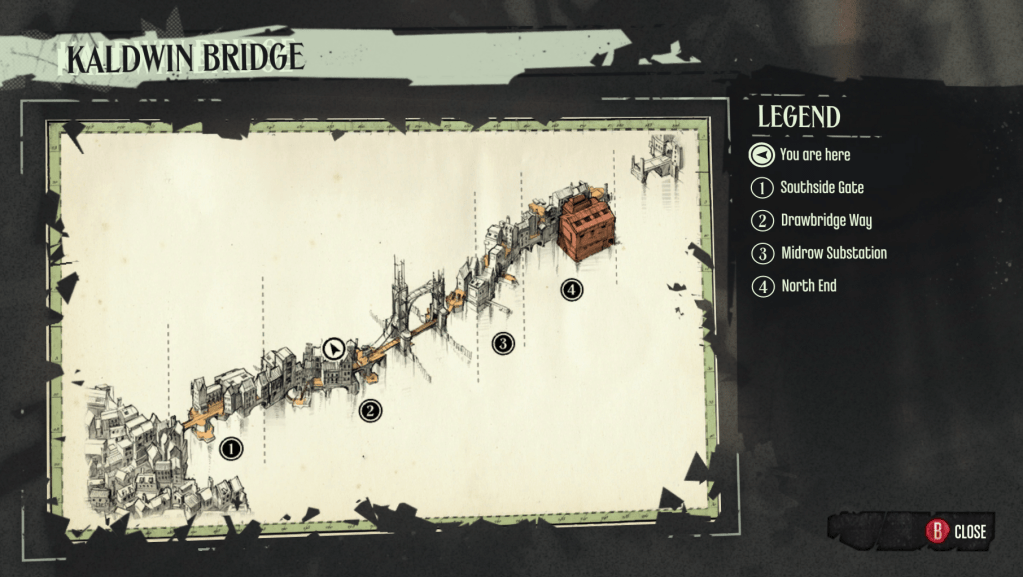
  • The Royal Physician mission’s levels feel the most linear (so far) in my playthrough. The zones are smaller and seem to have minimal traversal options compared to previous mission maps. It’s a bridge so I understand that the level options are limited, and it’s a nitpicky complaint, but it just felt like the most “grindy” and least interesting setup for working through a level.
    • This is also my least favorite mission. This was probably a difficult mission to balance since it’s mid-level and players probably aren’t quite as specialized or maxed out in certain abilities.
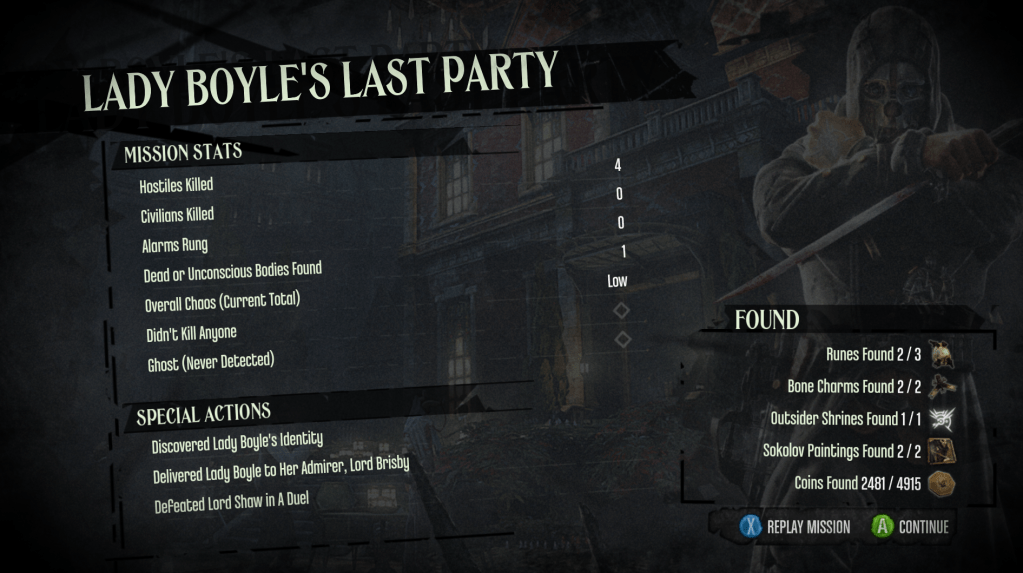
  • Lady Boyle’s Last Party has been my favorite mission so far. I like that it requires a different stealthing tactic to interact with the world.
  • The Flooded District: At first I was annoyed that my gear and equipment were taken, but then I realized I was getting too used to certain tools and weapons.
    • Having a humbling experience that required me to use an even more limited set of tools and even more patience with stealth was an interesting challenge.
  • The last moments of the game for me felt really short. I was able to sneak up on the final target and take him out before any big battle happened. This was a low chaos play-through so the level and outcome were going to be completely different from the other options. I was able to enter the area without the main target knowing and did a typical Blink + Takedown making the end result feel anti-climatic.

Final Thoughts

It’s hard to really believe that Dishonored is a game that’s approaching 12 years old. The way a player can interact and manipulate things in the level to solve problems is one of the reasons this game still feels unique with each play-through. Having a game that measures just how much the player’s influence on the world by using a chaos meter and the tactic in which players take out NPCs (either by non-lethal takedown, or by killing the NPC, which could affect the number of rats in the city and increasing the chance of infected to appear) creates a responsive loop for the player.

My biggest complaints about the game are minor nitpicks in general; I dislike the way the world looks when I’m using Dark Vision, the Agility upgrades seem disjointed compared to the rest of the game (e.g. The increased jump range now feels cartoony), and how tool capabilities seem really limited when trying to go for a stealth play-through. It didn’t affect my play-through much in the way of problem-solving or completing missions, but it’s worth noting some of the critiques.

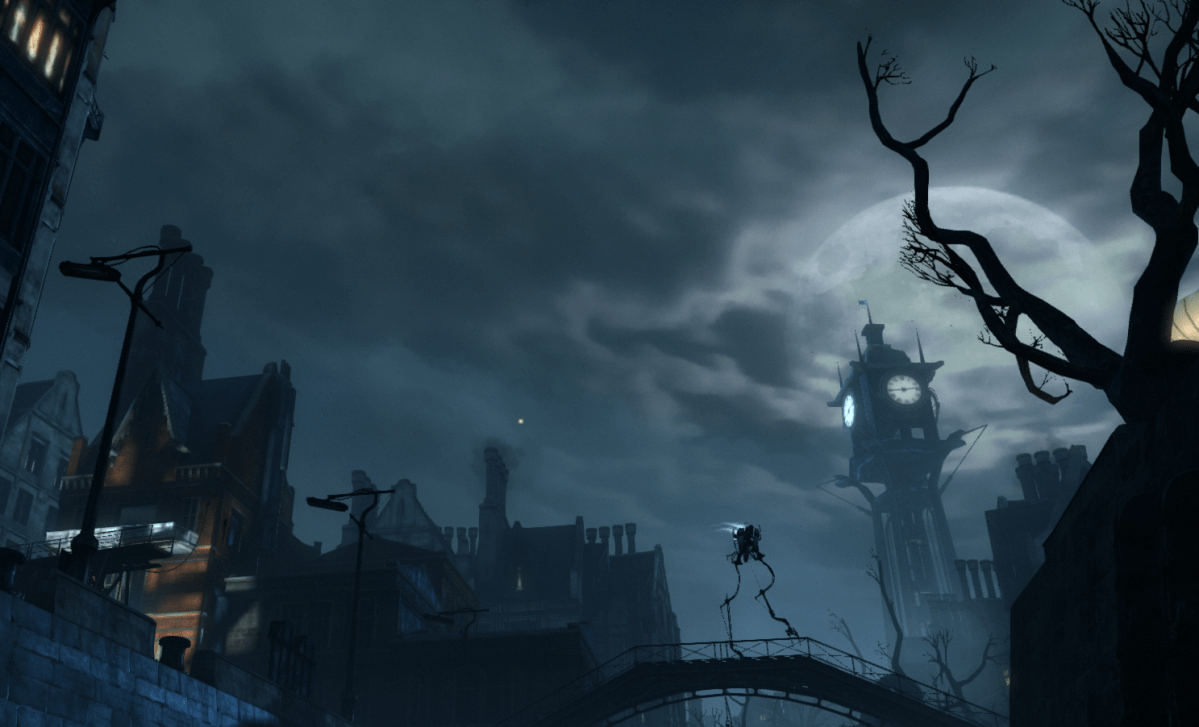
One of my favorite things about this game is how well it presents itself, artistically. There were a lot of moments where I was just mesmerized by the world setup and environment that I was caught off guard by wandering NPCs. There wasn’t a lot of exposition to the game and it was easy to jump into without worrying about a long ramp-up on getting familiar with the game and systems. Overall, it’s still one of my favorite games and I’m probably going to do another play-through soon.
Unreal Engine 5’s Gameplay Ability System: An Intro

I’ve been spending the last few weeks working with a system based on UE5’s Gameplay Ability System. In order to learn the general basics of the system I learned quickly that the best resource at the moment for a working example is a great tutorial by Leonard Parisi that exists on his Youtube channel and GitHub.

https://github.com/tranek/GASDocumentation#setup

https://youtu.be/LxT8Fc2ejgI?si=9VtveEblEge68II0

I’ve been working in a sample project for sandboxing and have found that this system allows for very quick prototyping. While it has a steep learning curve, once the basics are understood it makes it easy to create a playable experience.

I’ll be adding more details and examples from my sample project in the future, but I wanted to make note of my current references before I forget.

Unreal 5.1 And Blueprints: The Basics, Part III

This section is about Arrays, and more specification on other useful nodes.

Arrays

Simply put, arrays are a collection of elements.

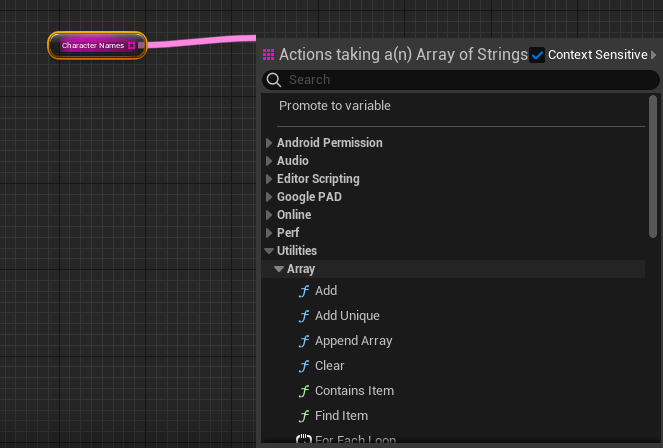
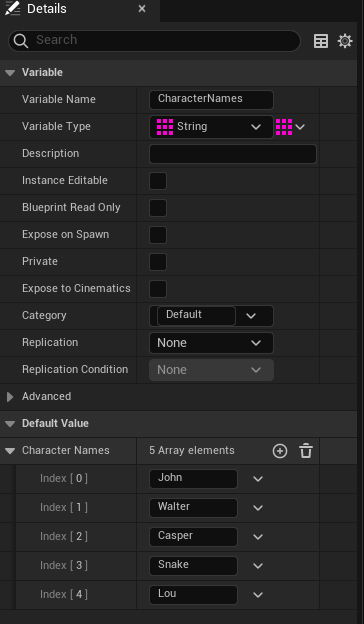
In the above example, the array here is a variable of strings which are defined in the Array elements list.

To create an example array, do the following steps:

  1. Create a variable and name it. In this case, we’re using a string variable.
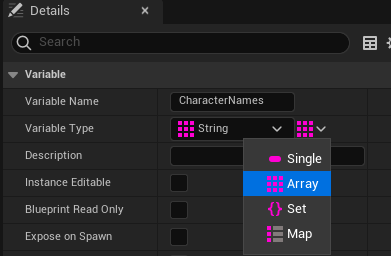
  2. After creating the variable, go to the Details view of your new variable and under “Variable Type”. There is a button to the right of that dropdown box. Select it, and select “Array”.

3. After compiling, you can begin populating your array with elements in the “Default Value” section.
Items of note:
  • The initial first “value” in an array lists with “0”.
  • You can get contextual list of “Array Function” nodes by dragging off the Array node > Utilities > Array

More Blueprint Nodes (Flow Control)

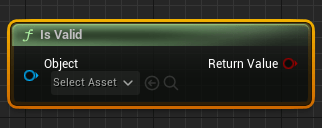
Is Valid Node

Is valid node is useful for checking the state of an object in the level. A good example of using this node is to setup a validation check on if the player has spawned into the level.

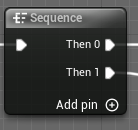
Sequence Node

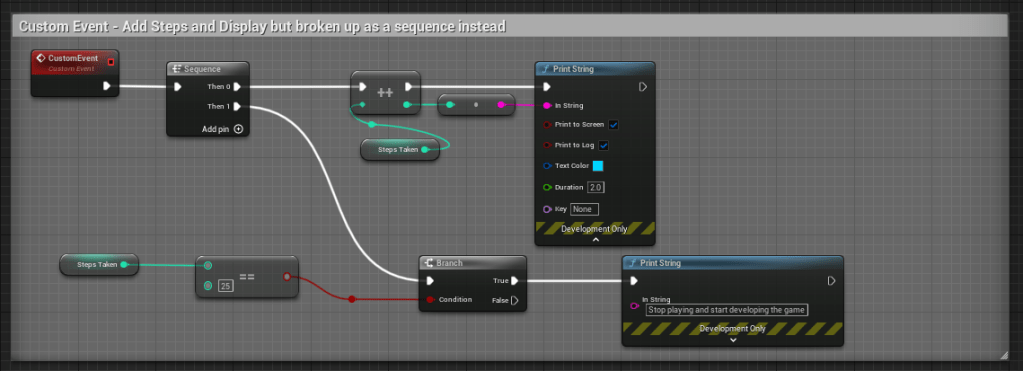
A sequence node executes graph nodes in sequential order. A sequence node is a useful way to organize and keep a graph compact.

Below are two example ways of setting up a custom event graph, the first does not use a sequence node, but the second example does. Both graphs do the exact same functionality.

Flip Flop Node

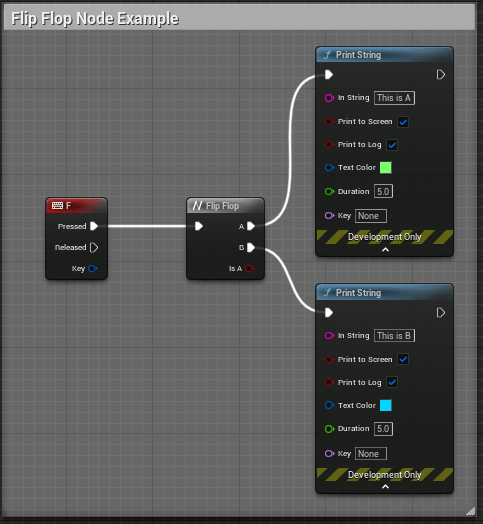
A Flip Flop node switches from A to B on a defined event. Below is an example of a Flip Flop node in use. When the user presses the “F” key input, the functionality will alternate between what is defined in “A” and “B”.

For Loop (Flow Conrol) Node

Loops are used to repeat a defined graph.

  • The indexes within the node can be variables connected to the node or defined as a specific amount.

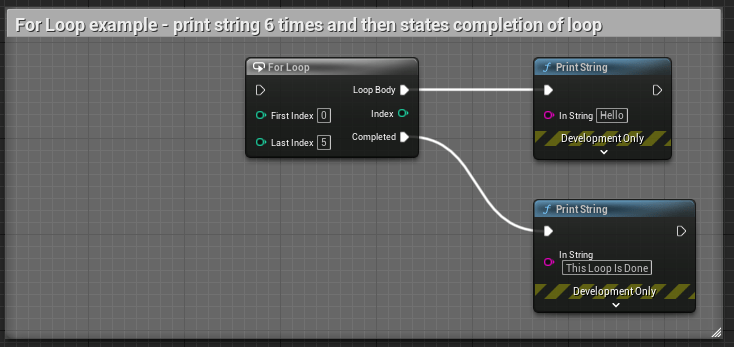
Below is an example of a simple “For Loop” that will print string a message on screen 6 times and then print a second message on completion of the loop.

For Loop With Break Node

This node is the same as the above node, but with an additional execution pin, “Break”.

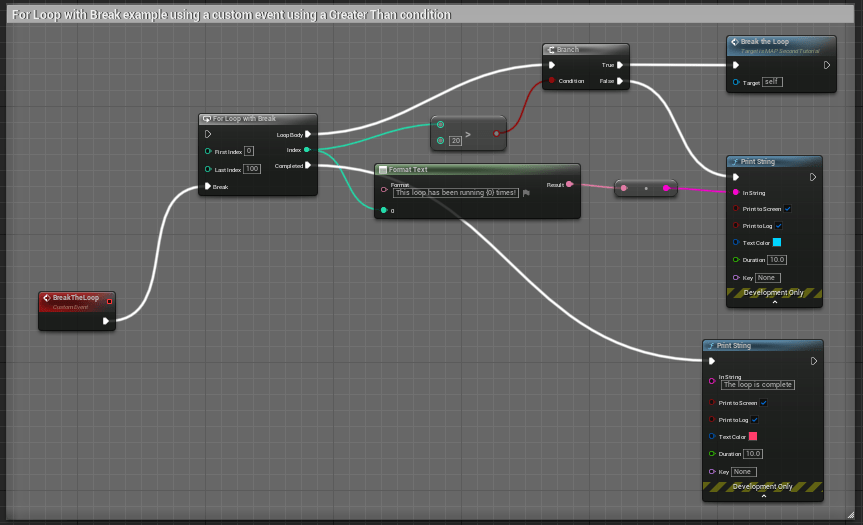
Break can be used to set a custom event* or some other function to occur when a condition is met, and it will “break” the loop.

*Remember that the custom event will need to be called within the loop body, otherwise it will not play.

The above example has some logic to “Break” the loop and call an event when when the loop index is greater than 20.

While Loop

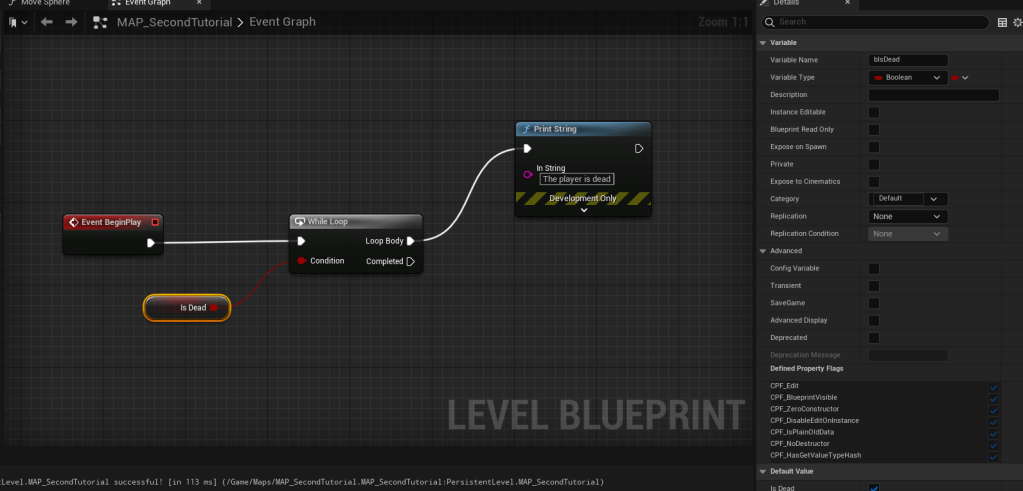
This is a potentially expensive node and should also be used sparingly. For example, I’ve set up a situation where an infinite loop can occur that causes an error.

In the above example, the logic is set to check to see if “IsDead” is occurring. Since there is no defined logic that changes the “IsDead” state the check on loop is infinite and displays the following error when pressing “Play”.

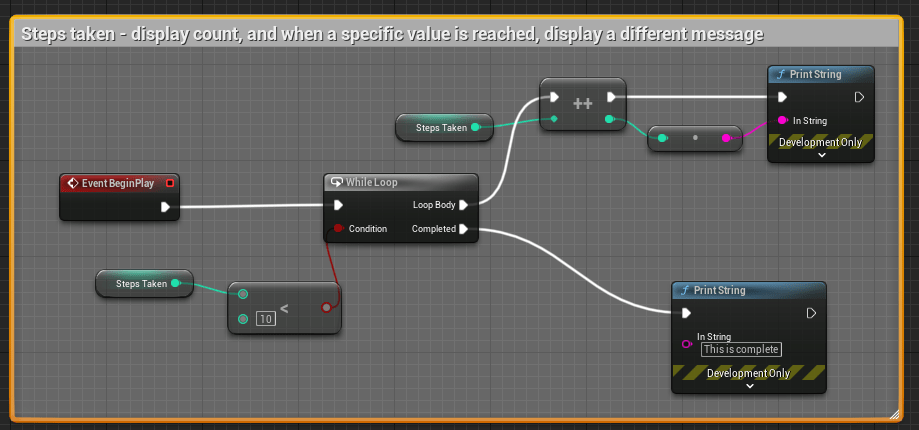
A better example of using “While Loop” is setup here:

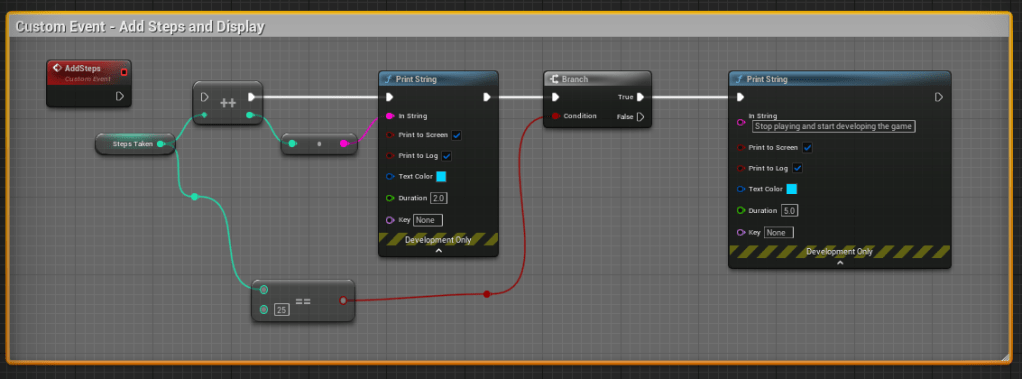
In the above example, the condition is looking for an integer value “Less than” 10. When in that threshold, the loop body is incrementing the steps by 1 and displaying the number of steps taken. When the condition is met (10 steps) a different message is displayed on screen.
Do Once & Do N Nodes

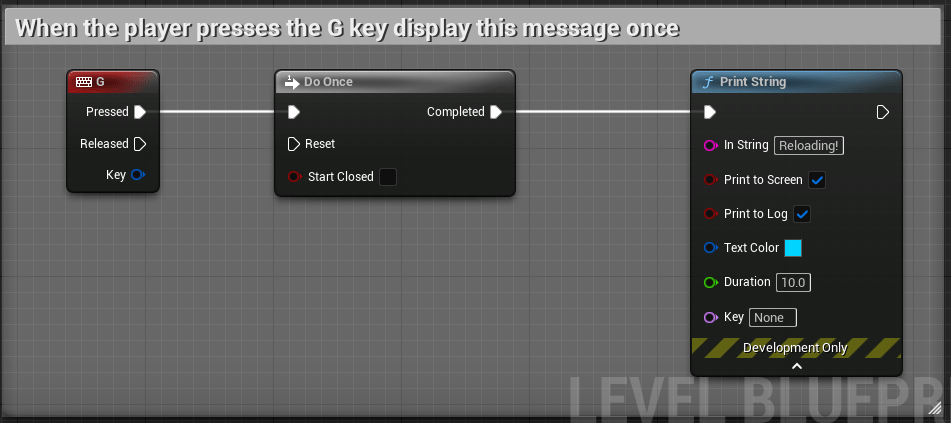
The Do Once node will only do a specified node sequence that is set after this node to occur once, unless another set of logic is defined on “Reset” of the node.

In the above example, when the player presses the “G” key, display this message once.

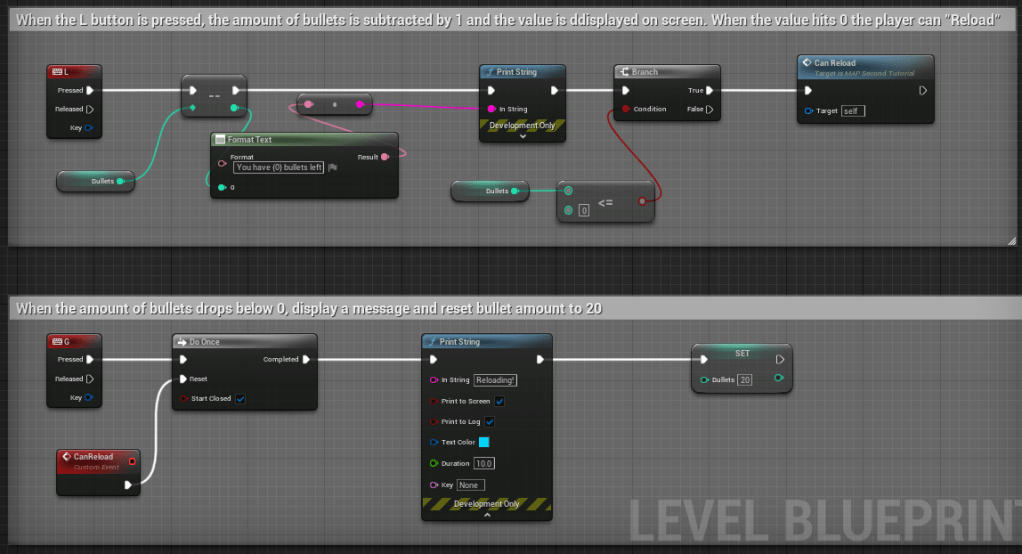
A better example using a custom event with a reset condition can be seen below.

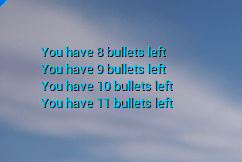
In the above logic, we have defined the amount of bullets to start at “20”. As the player presses “L” a deduction from the starting value of bullets occurs and displays a message. When the player reaches “O” or below bullets, the Branch then initiates the Custom Event, “Can Reload” to become available. The player then presses “G”, which displays a “Reloading!” message and sets the amount of bullets back to 20.

Do N Node

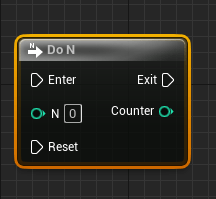
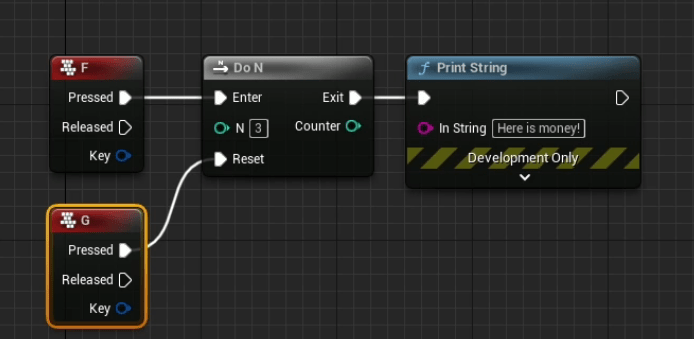
The Do N node can be used to define a sequence to occur a set number of times, by either defining a value in “N” or by using a variable to “count”.

In the above example, after the player has pressed “F” 3 times, no longer display the “Here is money!” message, and then allow the “G” key to reset the condition.

Gate & Multi Gate Nodes

The “Gate” node is used to create a graph sequence that “opens” and “closes” a gate based on the logic defined with execution pins connected to this specific node.

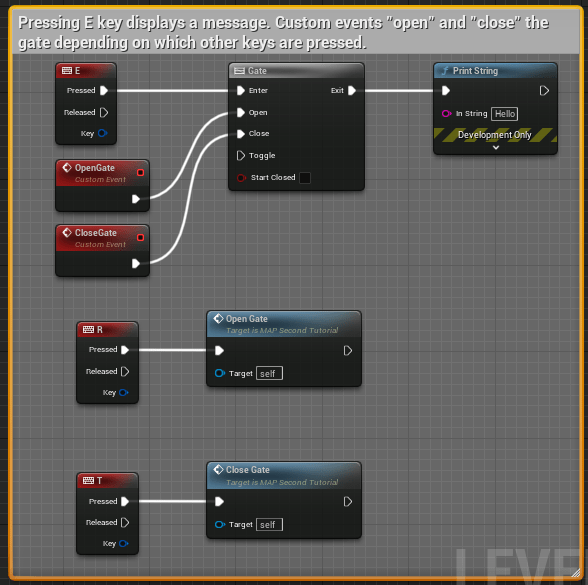
Below is a simple example of “Gating” logic using custom nodes.

By default, the gate is set to “Open” because the “Start Closed” checkbox is unchecked. In this series of logic, pressing “E” will display a message on screen. If the player presses the “T” key, the gate then becomes closed (meaning, the message will not appear on a keyboard press), but pressing “R” will “open” the gate once again.

MultiGate Node

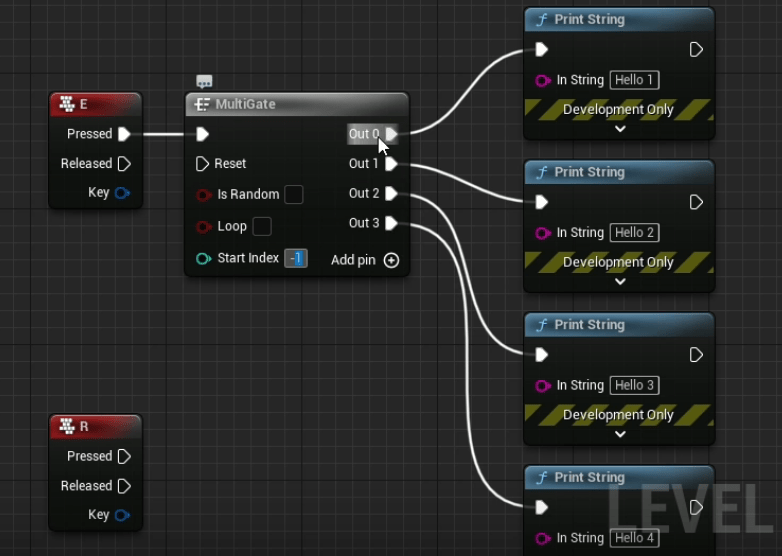
The MultiGate Node uses the same principles as the “Gate” node, but has a few more items that can be adjusted, including multiple “Out” execution pins.

In the example above, when the player presses “E”, the MultiGate node runs through each Out sequence as the player interacts with the defined key.

  • It should be noted that the “Start Index” is defaulted to occur with “Out 0”, but the value can be set within this node.
  • The gate will also stop after the final execution pin has completed unless the “Loop” option within the node is checked.
  • The “Is Random” checkbox can also be used to “randomize” the outcome.

Unreal 5.1 And Blueprints: The Basics, Part II

More details and breakdown notes for this post, including information on Event nodes, Custom Events, Functions, and Macros.

Blueprint Nodes, Part 2

Event Nodes


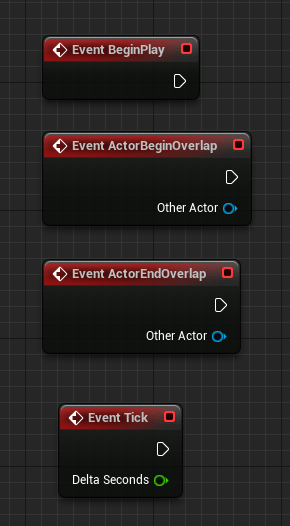
Event nodes are red in color and typically are the starting node in a graph sequence.

An important note! The most expensive and rarely used Event node is the “Event Tick” because of how frequently it “ticks”, which is 60 times per second!

Common Event Node Types

The following are some of the more common event node types frequently used when creating Blueprints. These

Event BeginPlay: Executes associated graph nodes on “Play” of level.

Event ActorBeginOverlap: Executes the graph associated when an entity begins an overlap with a defined “actor”. A common actor used is a “trigger volume”.

Event ActorEndOverlap: Executes the graph associated when an entity exits an overlap with a defined “actor”. A common actor used is a “trigger volume”.

Custom Nodes

Custom Events

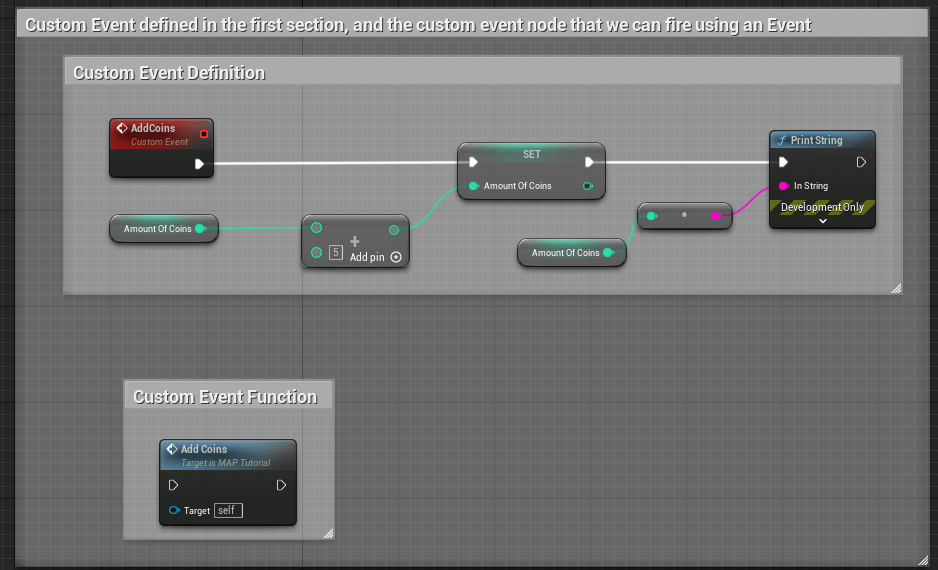
Custom events are event nodes that are specifically defined by a user.

Think of custom events as a larger container of nodes that you will prefer to organize and define once so you can easily reference them using one node instead of duplicating graphs repeatedly.

In the above example, a custom event here is called “AddCoins”. When the event is called, the amount of coins is increased by a value of “5” and the updated amount is displayed using a Print String node.

Special notes on custom events:

  • Events cannot have return values or local variables like functions, but the key difference between Custom Events and Functions is that Custom Events are asynchronous by nature.
    • Defining “Asynchronous by nature”: You can manipulate time inside custom events (adding delays or timelines). Also, you can replicate them over network (which means they are multiplayer friendly!).

Functions

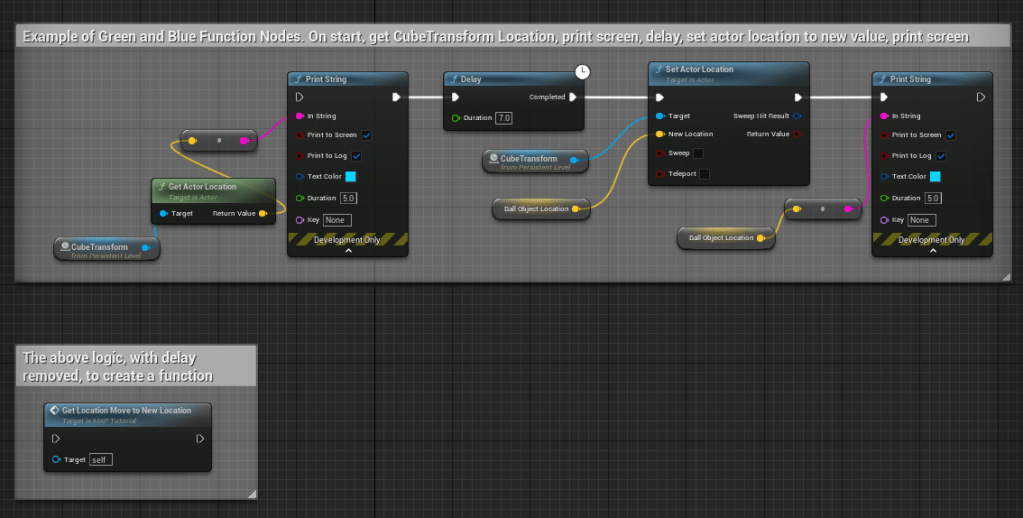
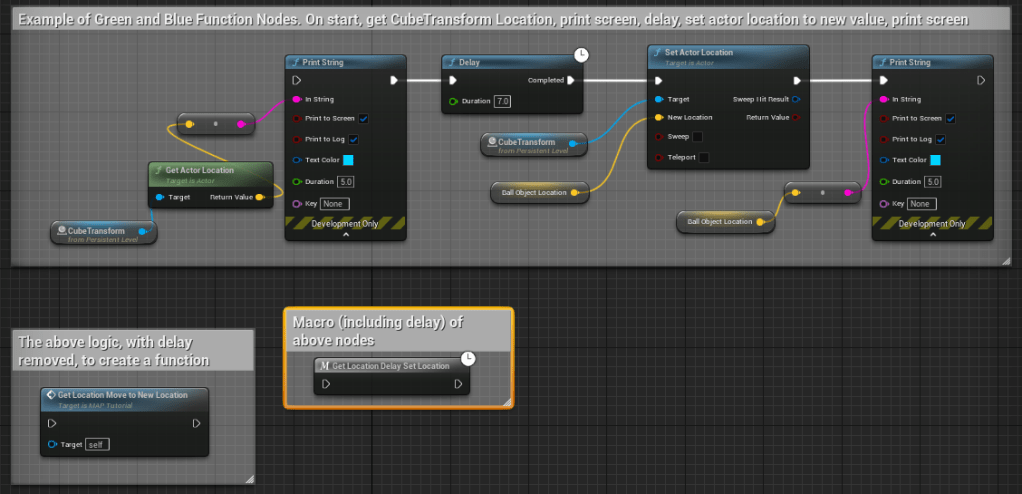
Functions are node graphs belonging to a particular Blueprint that can be executed, or called from another graph within the same Blueprint. Functions have a single entry point designated by a node with the name of the Function containing a single execution output pin (in the above example, notice there is only one entry and exit pin on the blue node below the larger graph).

Special notes on custom events:

  • You can create a new function by selecting all of the nodes that pertain to a specific graph that you’d like to group as a function, right click in the BP editor, and select “Create Function”.
  • Timed attributes, such as delay, cannot be used in a function (as noted above in the comment of the function example).
  • After creating a function, if you double-click on the node it will display all node logic in a separate graph tab for reference and adjustments.
Green vs. Blue Function Nodes

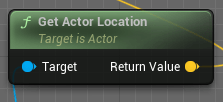
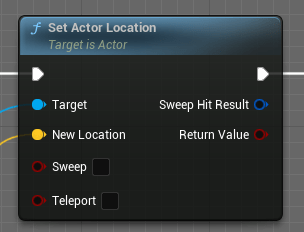
For simplicity sake, we can define Green Function Nodes as Pure Function nodes, which has no execution pins. Pure functions are wired to Data Pins and are automatically executed by the compiler when the data relying on them is required. This means that a Pure Function will be called one time for each node it is connected to.

Another way to define the difference between Green and Blue function nodes is that Green nodes “Get” info, while Blue nodes can “Set” info.

Macros

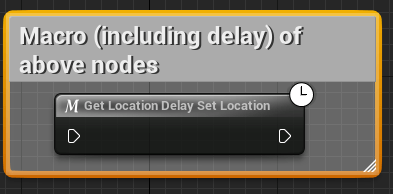
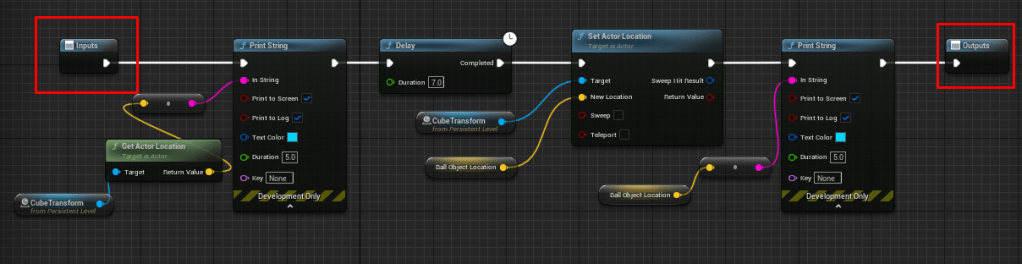
Macros are very similar in functionality to Functions, but they can contain delayed or timed function nodes. In the example above, the graph is fully encapsulated in the macro, and has a designated icon on it to indicate a timed event is part of the graph set.

Defining Execution Pins for Macros

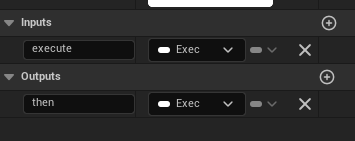
In the above example, this macro has an input and output execution pin defined. You’ll need to make sure in your graph that you define any variable needed to make an execution pin available.

To add an input and output pin, select the end node of your graph and look in the details panel of the BP editor. Locate the Inputs and Outputs values and add new.

Unreal 5.1 And Blueprints: The Basics, Part I.

Working through the following Udemy course as a way to get more familiar and comfortable with visual scripting.

I’m going to break down a few aspects of the learnings I’m going through for future reference for myself any anyone else who may need a quick primer on the fundamentals of Blueprints. These notes are more like quick bullet points with reference images attached to each to show some of the logic used to understand each category listed below.

General Notes

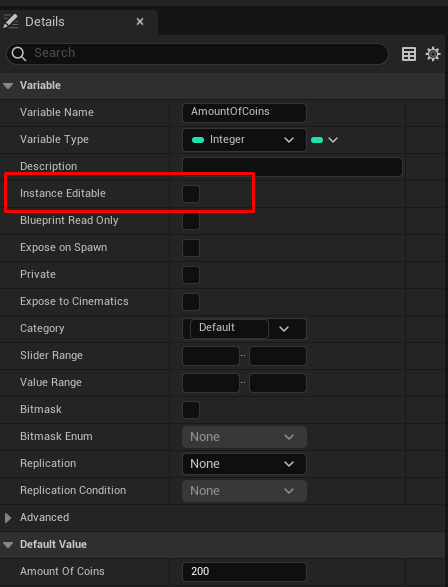
The order of operations for a blueprint follows conventional flow: Nodes flow from left to right and fire within the order organized. A variable can also be set to be manipulated based on its instance in a level by setting the “Eye” icon next to its variable name to “open”.


This change can also be set within the details panel of the variable here:

The difference between “Get” and “Set” when adding variables to blueprints.

When “Getting” a variable, you are just querying to get the defined value of the variable.
When “Setting” a variable, you are altering the variable dynamically when called.

A Breakdown of Variables

Most Common Variables


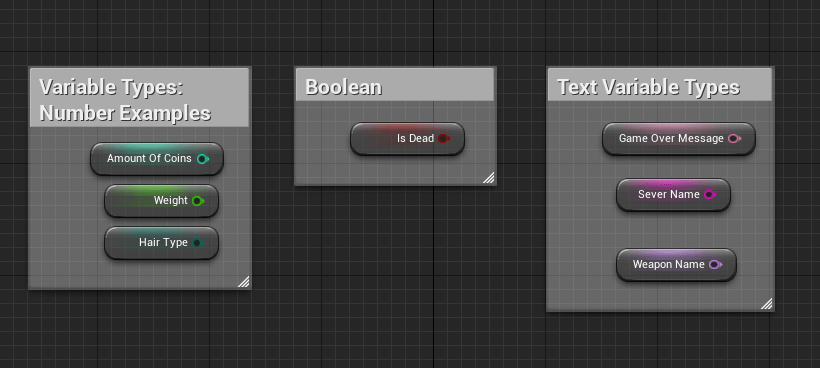
Boolean – A variable value that is either true or false.
Integer – Numeric variables that are whole numbers.
Float – Numeric variables that can contain decimals.
Byte – Values that are also whole numbers but the max value that can be defined is 255. Bytes also use less memory due in part to its value constraints.

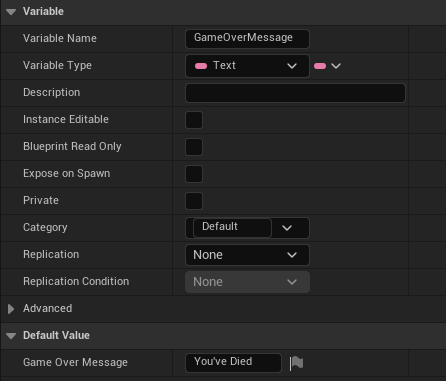
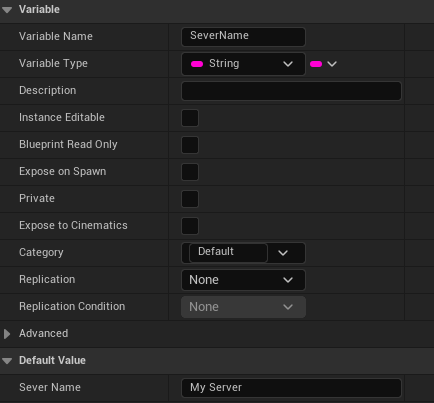
Text Variables:

Text – An input variable of specific text directly defined in the variable. Out of all the text-specific variables, this uses the most memory and can be localized.

String – Another text input variable. This specific piece of text cannot be localized and uses a medium amount of memory.

Name – Text input variable that uses the least amount of memory, cannot be localized and cannot have “append” functionality.

Manipulation Variables:

The following variables can manipulate a game object’s positioning within the world.

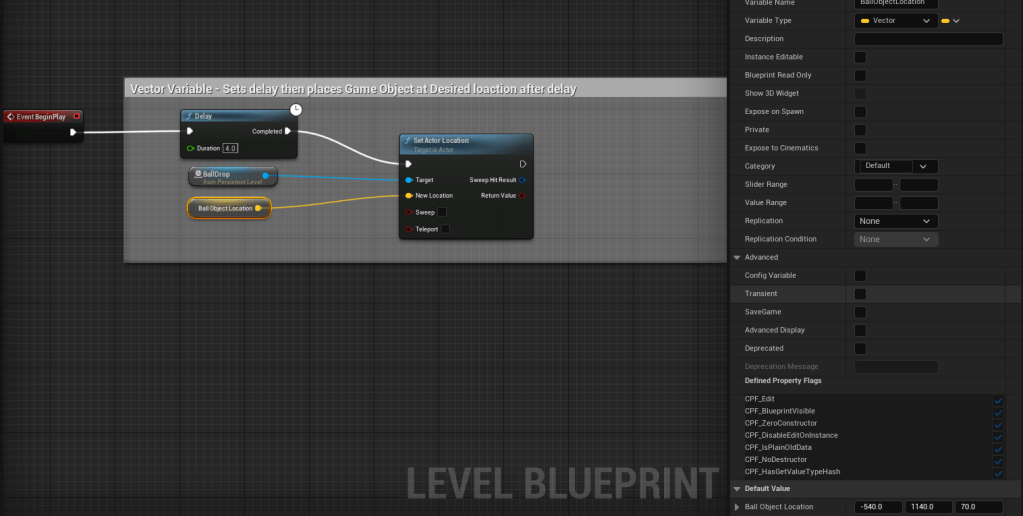
Vector – Contains 3 numeric input values typically associated with location in the defined space. Can alter an object’s location when variable is called.


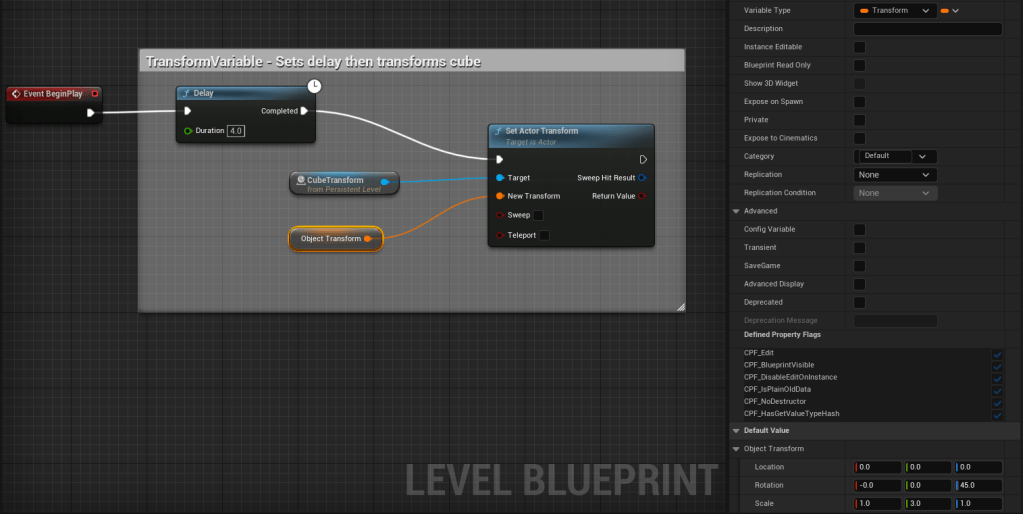
In the above example, the following logic is occurring.
On Event BeginPlay (start of play) Delay this action by 4 seconds, then set target (in this case, it’s a level object called “BallDrop”) to change location to the variable input.

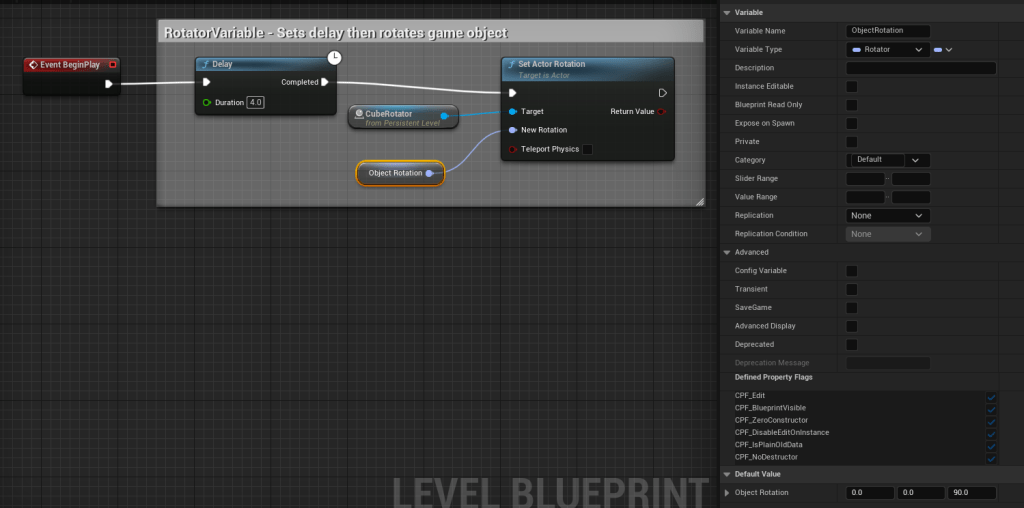
Rotator – Used to change a rotation of an item.


Transform – Used to change the full transform of an item, such as scale, rotation, and location.

Operators and Conditionals:

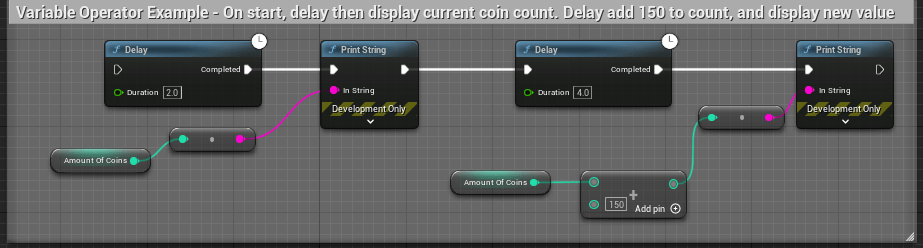
Variable operators – math elements, like addition, subtraction, multiply, divide that can be used to adjust a variable’s value.


In the above example, this series of nodes are set to do the following in order:
1. Delay by 2 seconds
2. Check and display amount of coins
3. Delay after display by 4 seconds
4. Add 150 to the current amount of coins
5. Display new coin value

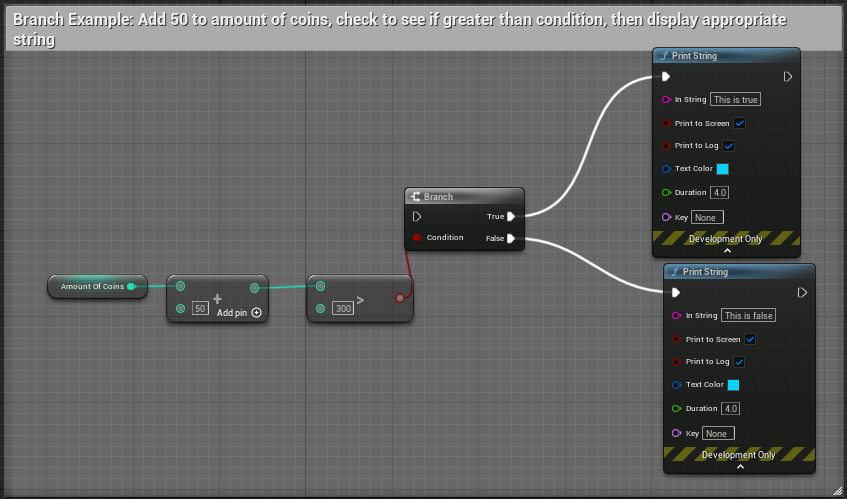
Branches – “IF statement” Node. Checks an input value and determines if it is “true” or “false” and follows the proper flow outcome of definition. Branch condition values need to be defined as a bool to define a “true” or “false” outcome.

Branches can use conditionals to evaluate data criteria, such as <, >, <=, >=, != (not equal), == (equal).


A Return To Unreal

Hello again, it’s been a while! I’ve had a few job changes over the last few years, and each role has required me to work more in documentation than in a scripting capacity. I must say, I was worried about getting rusty, and even though a lot of the dust is knocked off, I’m still very much an Unreal Engine noob.

The interface, file structure, and content-building tools are all pretty standard and very easy to get familiar with, but Blueprints continue to be a challenge. Because of this, I wanted to list out a few resources that helped me at least get a basic understanding of Blueprints. They’re great reference points that I’ll continue to use for a long while.

Unreal 5 Documentation
This is Unreal’s official documentation source.

Mathew Wadstein Tutorials
HTF Do I and WTF Is tutorial videos that are quick and informative.

https://kenney.nl/assets
Asset store with lots of free offerings.

Udemy

More to be added as I continue on my exploration of Unreal.

Learning Unreal Day 2

I’m about 75% of the way through this lesson from Unreal’s learning resource center. I really like all of the available lessons and especially appreciate their Badge system which helps mark a learner’s progress through a fun little achievement system. The overall resources out there for learning and utilizing Unreal is astounding and I appreciate all of that information placed in one unified location with easy search tools.

The next lesson I’m going to jump into is a course on Gamedev.tv that explores Blueprints and provides users with hands on experience creating a prototype simple game. I’m pretty excited about this one and can’t wait to do some more hands-on application with the editor.

An example image of a blueprint from “Exploring Blueprints” lesson

Looking forward to sharing more soon!

Learning Unreal Engine: Day 1

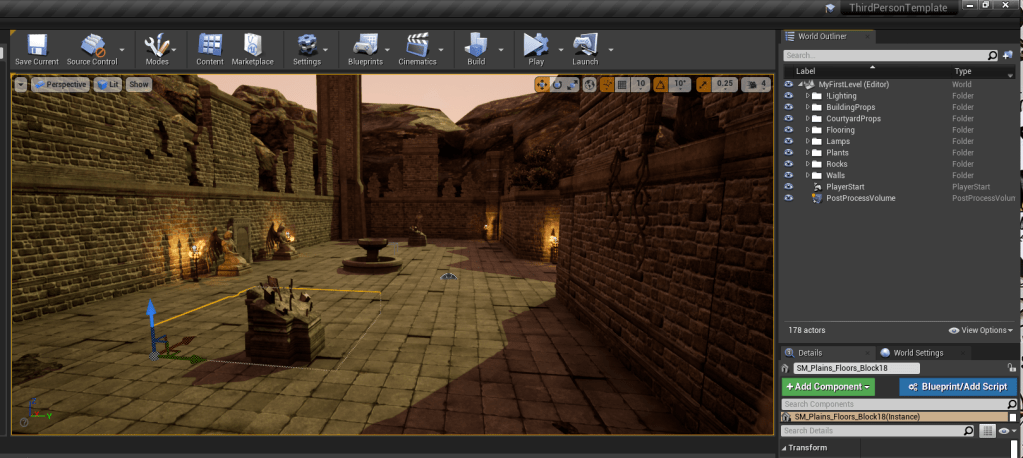
Running through introduction tutorials and built my first level using free assets in the Epic Store. Having all of the items in one spot, including the market place, the Epic Launcher, and the Unreal Engine in one shell is really cool.

I only dabbled in Blueprints creating a prop light, but I think I’m going to really enjoy tooling around with the options. After using Unity for so long, I was worried Unreal would be difficult to learn, but it’s pretty intuitive so far; let’s see how I feel about that after a few more days.

Very much looking forward to creating more actors and using assets to build something playable.

For reference, these are the tutorials I ran through today:

Introducing Unreal Engine – Really great introduction to all of the components that make up the editor.

Your First Hour With Unreal Engine -A very, very quick overview on importing assets, creating your first level, adjusting lighting, and creating a simple Blueprint.

An Introduction to Game Design

A few months back, I was asked to do a write up on the different disciplines that exist in game design to help onboard a new designer. As a neophyte to design, this person is still unsure of what realm they are hoping to dive into long-term. This was created as a template, a broad introduction, on the different vectors that exist in game design that they may get introduced to during their initial first few years as a developer. While this is a broad list, it isn’t everything, but covers a lot of common roles I’ve come across during my time in game design.

Overview

A summary of the typical tasks and expectations for a newly minted game designer. The intent is to give a broad overview of the most common roles and tasks most new designers experience. An additional quick description of some of the more common disciplines within the design group is also included. Please note that each project, each strike team, and each craft have their own unique characteristics. This is meant to serve as merely a general guide for the purpose of providing some insight into the craft. 

A brief introduction to Game Design and the expectations for a junior or entry level designer

Trying to sum up the complicated nature and description of what a “Game Designer” does is often difficult and hard to explain to those who are not familiar with the general processes of game development. Game designers often don’t code like a programmer, but most know some code language. Designers usually don’t create art assets, or have much to do with rigging an animation for those art assets. Designers also don’t spend a lot of time planning out milestones or developing a schedule; those aspects are often left to game production, directors, and product owners. 

Instead, designers are often the midpoint between all disciplines, taking each aspect of development and actually making them work. 

Years ago, an article on Gamasutra written by Liz England summed up the overall function of a game designer in a very elegant way. She equates the job of a game designer as someone who has to make a door open and close; game designers don’t fabricate doors, they don’t make the code that opens the door, but they are the ones who bring those multiple aspects together and add the finishing touches to it. If you’re curious, you can find the article here: https://www.gamasutra.com/blogs/LizEngland/20140423/216092/quotThe_Door_Problemquot_of_Game_Design.php 

What makes game design such a unique and fun discipline is the encouragement and frequent discussions surrounding new or older games. As a game designer, you should have a vested interest in video, board, or table top games. Not many other professions allow a group of people to discuss game mechanics or share experiences with a game during work hours, and most often, it’s highly encouraged. You’ll frequently hear people refer to experiences they had in a game as starting points for design discussions and the more exposure you have to all things gaming the more at ease you’ll feel. Think about a positive experience you had in a game recently, be it tabletop, video, or board game, and how that experience stuck with you. What made it so fun and unique? What about that moment was so exciting? Now, just take another moment to realize that you are now part of the opportunity to make someone else feel the same way! 

An important piece of information to keep in mind as a new game designer is that no one expects you to know everything. In fact, the expectation most other team members have for a new designer is the interest in learning and observation. That’s basically it!

The thirst for knowledge and the curiosity of trying to understand how things work are the most highly sought after traits that are expected. This message is often echoed frequently to all new designers to help alleviate stress, and also to encourage the new designer to ask questions, or just shadow a more experienced designer. Ideally, you’re a blank slate eager to learn and observe how the craft collaborates within itself and with other game development disciplines. 

During the learning process, most new designers begin to notice the specializations that make up a design team or craft. We’ll examine some of these disciplines and specializations in more detail shortly. The most important takeaway any new designer should carry through their entry experiences is that you will find you are stronger in some aspects of design and weaker in others. This is more than okay; knowing where your interests, strengths, and passions fall while also being cognizant of your weaknesses will only strengthen your arsenal in personal development tools and skills.

A more in depth examination of the typical tasks of a junior or entry level designer

We’ve touched on the general expectation by most team members of a newly appointed designer, with an emphasis on the interest in learning and observing. 

Depending on the starting point into development for the new designer, their experiences with game development in general is very personal and custom to them. 

Some designers begin their journey as developers in Quality Assurance, Customer Support, Content Marketing, or another department altogether, allowing them to witness some of the workflow and processes, including deliverables, testing, release, and support (such as hotfixes and bug reports). Others get their start through a game development school or program, which typically has more of an emphasis on tools and content creation. The array of experiences each new designer has varies making it obvious that there is no one right path into game design. 

Having familiarity with the development process or tool sets such as editors and 3D modeling software helps, but isn’t always necessary. This is because each design group is unique. For example, even though Unity is a very commonly used editor, no two products or games utilize the editor the exact same way. Most games require custom built tools for content creation and bug fixing, such as localization and data management. While it helps to have a basic understanding of an editor such as Unreal or Unity, just keep in mind that you will still need to spend some time learning the basic aspects of the tools. 

Most new designers (no matter their level) spend the majority of their onboarding process learning the intricacies of the tools, including limitations, bugs, and workarounds. 

As you work through multiple aspects of the design process you will begin to notice items that you feel more comfortable with than others. Make sure to keep notes and highlight areas that interest you, that confuse you, or you don’t feel comfortable with touching, because this will help continue facilitating your development growth.

Once a new designer is comfortable with tools and processes, the most common tasks that they begin to tackle often depend on the team’s needs. You may spend weeks fixing old bugs, or helping polish a new content area, you may spend time creating player items and gear, or you may even spend most of your day testing or peer reviewing another designer’s work before it is ready to go to QA. The more exposure you have to testing will help expedite the learning process while also allowing you to help a fellow designer make target deliverable dates with a more polished experience. The most important takeaway during this time is to remain patient with yourself; no one expects a junior designer to build flawless or bugfree content. Instead, the expectation is always going to be the continued willingness to learn and observe.

After a few cycles of shadowing, testing, bug fixing, or tackling smaller tasks, remember to keep updating your personal notes on aspects of these processes you find to be most passionate about, aspects you’d like to learn more about, and areas you still aren’t comfortable with working on. During your one-on-ones with a manager or discussions with your mentors, a more clearly defined role for you will begin to emerge. There is no set time limit for when these specific items will be hit; it’s all very custom to the new designer and will take some time to develop. Have patience with yourself while also continuing to ask questions, observe, and take detailed notes. Once you are ready, you’ll begin to work toward some of the more specialized disciplines within the design department.

The design team/craft makeup

Keep in mind that each product may have a different set of specialization designers. Here, we’ll examine some of the more common disciplines within design: Systems, Content, Narrative, Level, and Economy Design. These are just broad and general descriptions, but are a good starting point in examining some of the aspects you as a new designer may find interesting. The biggest item of note is that each discipline works closely with each other to develop features and deliverables. 

Systems Designers

Designing and working in systems is one of the more common disciplines within design. Typically, these systems can range from the creation of a crafting system, balancing player gear, and retrofitting older content values to newer ones. Most system designers work in numbers, spreadsheets, and formulas to help create a “balanced” gameplay experience.

Content Designers

Content designers often work with game mechanics such as quests, job boards, achievements, and other types of playable content to add more depth to the gameplay experience. 

Narrative Designers

Narrative designers often specialize in the actual story that goes into the game. They work closely with all of the disciplines to tie together the plot and frequently write most of the quest and game descriptions of items such as player gear and lore.

Level Designers

Level designers specialize in creating the actual playable areas that go into the game, spending time working with artists and in game to get a feel for the overall gameplay environment. Painting terrain, using props, and building new areas are just some of their areas of specialization.

Economy Designers

Economy designers often work closely with system designers to create aspects of gameplay that rely heavily on currency. Similar and sometimes overlapping with system designers, their specializations often are focused on in-game shops, item costs, and items that  can be purchased with real word currency.

Conclusion

Think of your introduction to game design as any other skill you may have had to learn and eventually mastered in the past. Things like learning how to ride a bike, playing an instrument, or even writing a good story all took time and practice to hone your skills. There will be some days you will feel you’re finally getting the hang of it only to notice a bug you cannot fix. Don’t fret, rather take a moment, maybe even a break, and come back to it. Don’t be afraid to ask for help. Asking for help, feedback, and continuing to ask questions are aspects that will help make you stronger and eventually allow you to develop a more natural intuition for design. 

Remember that moment I asked you to recall from a recent gameplay experience that left you with a positive experience? At some point the content you help create will also do the same for someone else, and even though you may go through some trying times with the editor, with the tools, or even trying to understand how things work, it all pays off when you get to see a positive response to a piece of gameplay you helped design.