Working through the following Udemy course as a way to get more familiar and comfortable with visual scripting.
I’m going to break down a few aspects of the learnings I’m going through for future reference for myself any anyone else who may need a quick primer on the fundamentals of Blueprints. These notes are more like quick bullet points with reference images attached to each to show some of the logic used to understand each category listed below.
General Notes
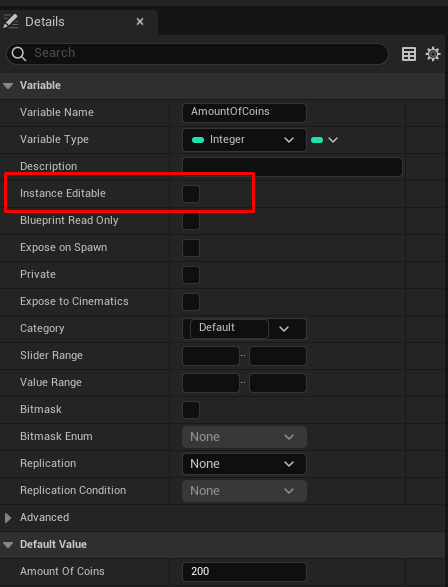
The order of operations for a blueprint follows conventional flow: Nodes flow from left to right and fire within the order organized. A variable can also be set to be manipulated based on its instance in a level by setting the “Eye” icon next to its variable name to “open”.

This change can also be set within the details panel of the variable here:
The difference between “Get” and “Set” when adding variables to blueprints.
When “Getting” a variable, you are just querying to get the defined value of the variable.
When “Setting” a variable, you are altering the variable dynamically when called.
A Breakdown of Variables
Most Common Variables
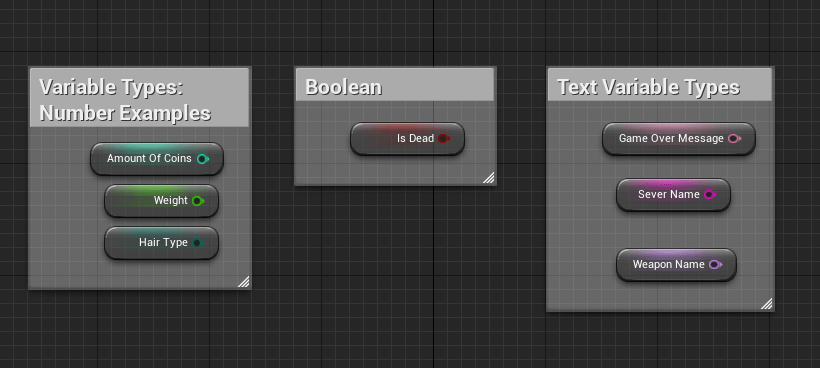
Boolean – A variable value that is either true or false.
Integer – Numeric variables that are whole numbers.
Float – Numeric variables that can contain decimals.
Byte – Values that are also whole numbers but the max value that can be defined is 255. Bytes also use less memory due in part to its value constraints.
Text Variables:
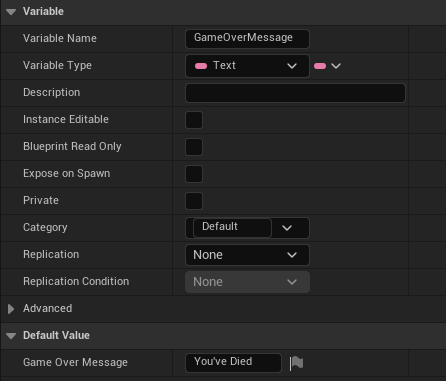
Text – An input variable of specific text directly defined in the variable. Out of all the text-specific variables, this uses the most memory and can be localized.
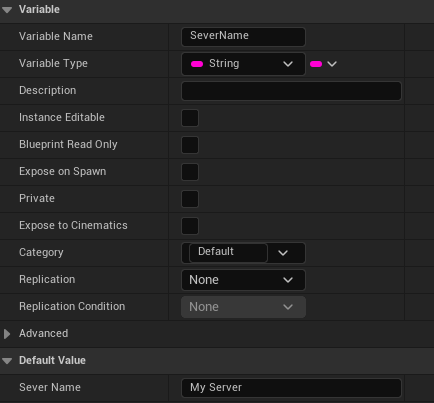
String – Another text input variable. This specific piece of text cannot be localized and uses a medium amount of memory.
Name – Text input variable that uses the least amount of memory, cannot be localized and cannot have “append” functionality.
Manipulation Variables:
The following variables can manipulate a game object’s positioning within the world.
Vector – Contains 3 numeric input values typically associated with location in the defined space. Can alter an object’s location when variable is called.
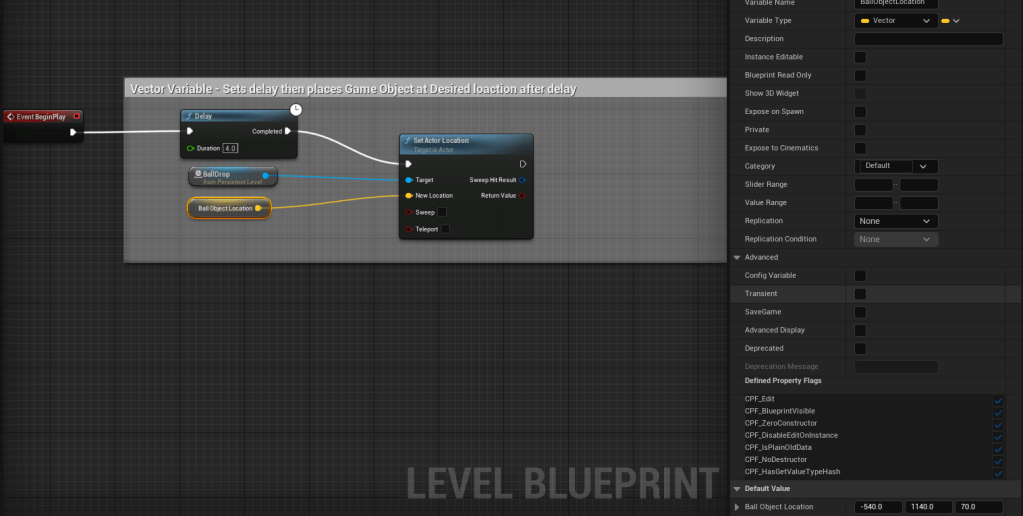
In the above example, the following logic is occurring.
On Event BeginPlay (start of play) Delay this action by 4 seconds, then set target (in this case, it’s a level object called “BallDrop”) to change location to the variable input.
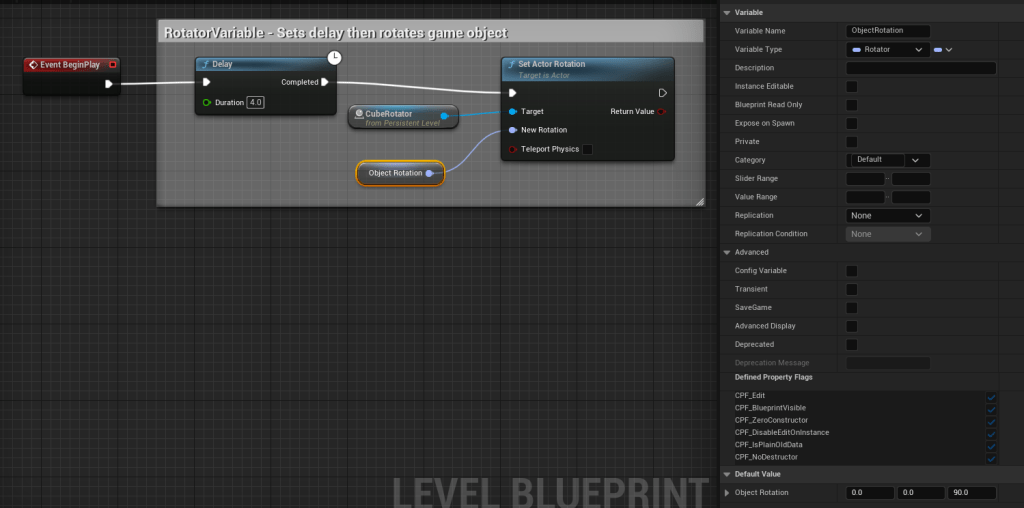
Rotator – Used to change a rotation of an item.
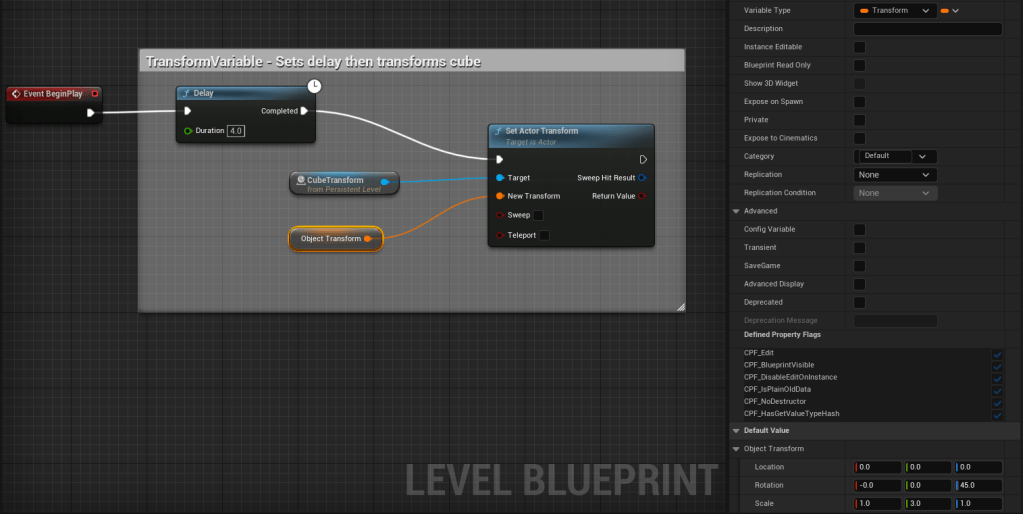
Transform – Used to change the full transform of an item, such as scale, rotation, and location.
Operators and Conditionals:
Variable operators – math elements, like addition, subtraction, multiply, divide that can be used to adjust a variable’s value.
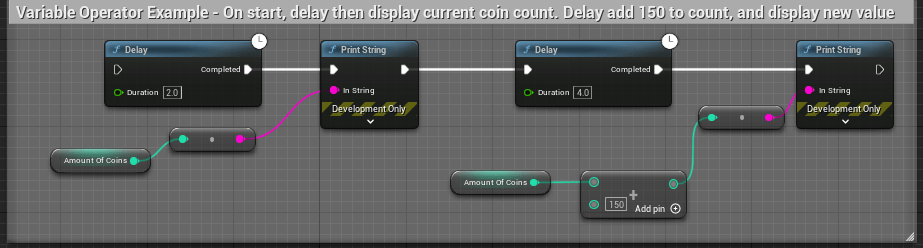
In the above example, this series of nodes are set to do the following in order:
1. Delay by 2 seconds
2. Check and display amount of coins
3. Delay after display by 4 seconds
4. Add 150 to the current amount of coins
5. Display new coin value
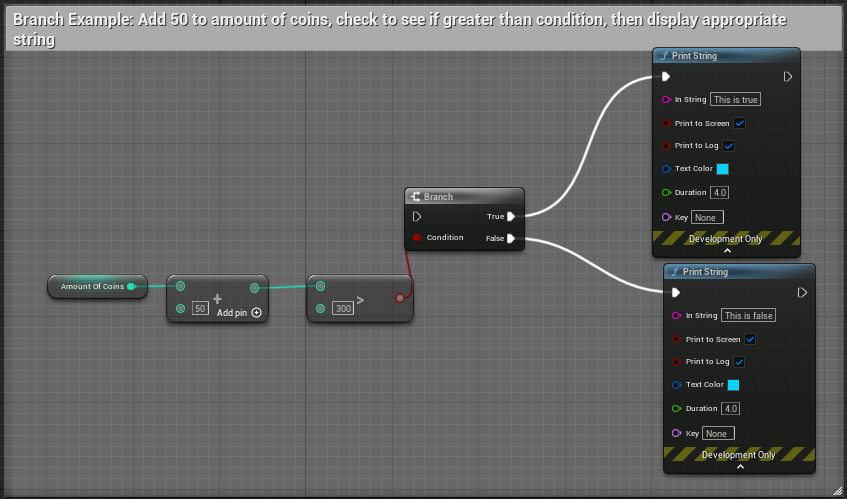
Branches – “IF statement” Node. Checks an input value and determines if it is “true” or “false” and follows the proper flow outcome of definition. Branch condition values need to be defined as a bool to define a “true” or “false” outcome.
Branches can use conditionals to evaluate data criteria, such as <, >, <=, >=, != (not equal), == (equal).

 Valerie Kromas
All I can really say is WOW. However, it doesn’t surprise me a bit that you could create something like this! Love you,Mom
LikeLike
Thanks, mom! Love you, too!
LikeLike